1. Trim your own MP4 on your device
Open Trim a video and choose an MP4 with H.264 video and optional AAC-LC audio. Set the start and end in seconds, or use the playhead buttons. The tool shows the requested range and the actual keyframe cut. Play the exported clip, then choose Download MP4.
The source file is read in your browser and is never uploaded. The start snaps to the nearest keyframe at or before your time, or the first keyframe, so the cut can differ from the requested time. Very large files may exceed a phone’s memory; use a desktop browser for long recordings.
2. Try the sample interview
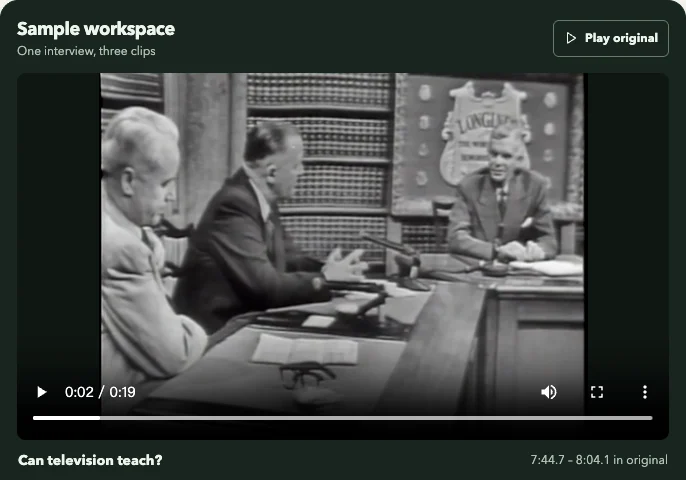
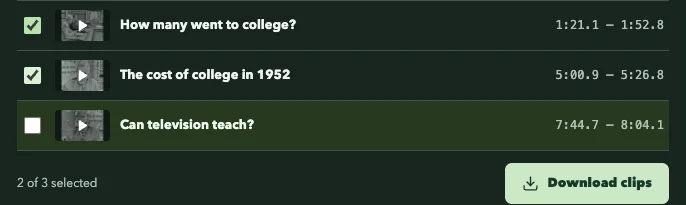
Choose Try a sample on the homepage. Play the original, then select a clip row to compare it with its timestamps. Tick the boxes for the excerpts you want. Download clip saves one MP4. Download clips builds a ZIP in your browser.
3. Check the result before you share it
Play the first and last seconds and listen for clipped audio. The actual cut may differ from the requested time because of keyframes. Keep the source credit with the sample footage when you share it.
What is not available yet
Server upload, automatic pause or scene splitting, multi-clip server export, and frame-accurate export are not open in the public launch. The pages explain the planned workflow and link to the tools that work today.